← All chapters
Your Bid Page and Downloads
Open any Ready bid from your dashboard.
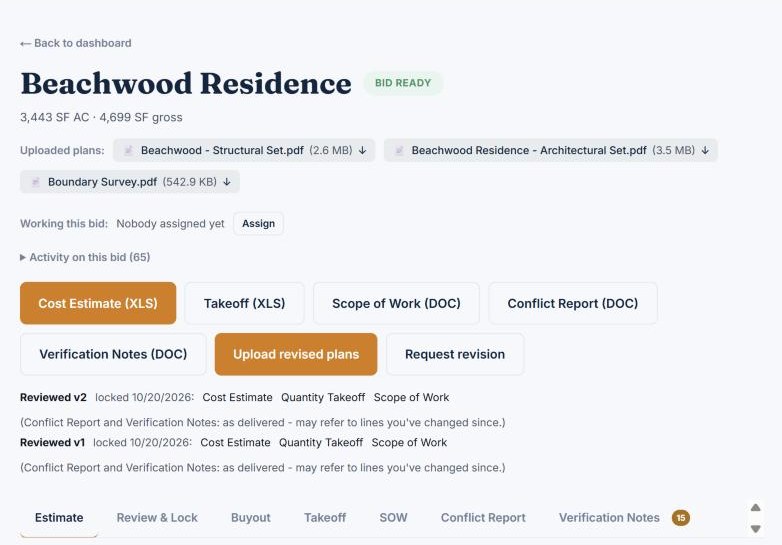
The header
- Project name, status and square footage.
- Uploaded plans: click any file to download your original PDF.
- Working this bid: who's assigned. Owners and admins can Assign teammates.
- Activity on this bid: every change, who made it and when.
Downloads
One click each:
| Button | File |
|---|---|
| Cost Estimate (XLS) | Klorra_Cost_Estimate_{Project}.xlsx |
| Takeoff (XLS) | Klorra_Quantity_Takeoff_{Project}.xlsx |
| Scope of Work (DOC) | Klorra_Scope_of_Work_{Project}.docx |
| Conflict Report (DOC) | Klorra_Conflict_Report_{Project}.docx |
| Verification Notes (DOC) | Klorra_Verification_Notes_{Project}.docx |
On the Studio plan, your company name replaces "Klorra" in the file names, and your logo goes on the estimate and scope of work.
Once you lock a reviewed estimate (see Review & Lock), a line like Reviewed v2 locked 10/20/2026 appears with its own Cost Estimate, Quantity Takeoff and Scope of Work. The delivered set never changes, so you always have both.
Other buttons
- Upload revised plans: see Revised plans.
- Request revision: tell us something is wrong with the bid. We reply within 24 hours.
The tabs
- Estimate: the cost estimate as delivered.
- Review & Lock: where you make your changes, with Klo.
- Buyout: trade packages, requests for bid and sub bids.
- Takeoff, SOW, Conflict Report, Verification Notes: the other four documents. The badge shows how many verification items there are.
A bid you haven't locked yet opens on Review & Lock.
Next: Read your five documents.
Klorra deliverables are budgeting and planning tools, not warranted bids. Every quantity and rate is the builder's responsibility to verify before commercial use. Terms §3.