Getting Started
Klorra turns a plan PDF into a finished bid package: a quantity takeoff, a line-item cost estimate, a scope of work, a conflict report and verification notes, typically in 2–4 hours. This guide walks through every step, from your first upload to sub bids lined up against your estimate.
Create your account
- Go to klorra.ai/signup and sign up with your email.
- Enter your full name and, optionally, your company name. That's the whole onboarding.
- You land on your dashboard with one free bid already on the account. No card required.
You also get a welcome email with a link straight to the upload page.
Your dashboard
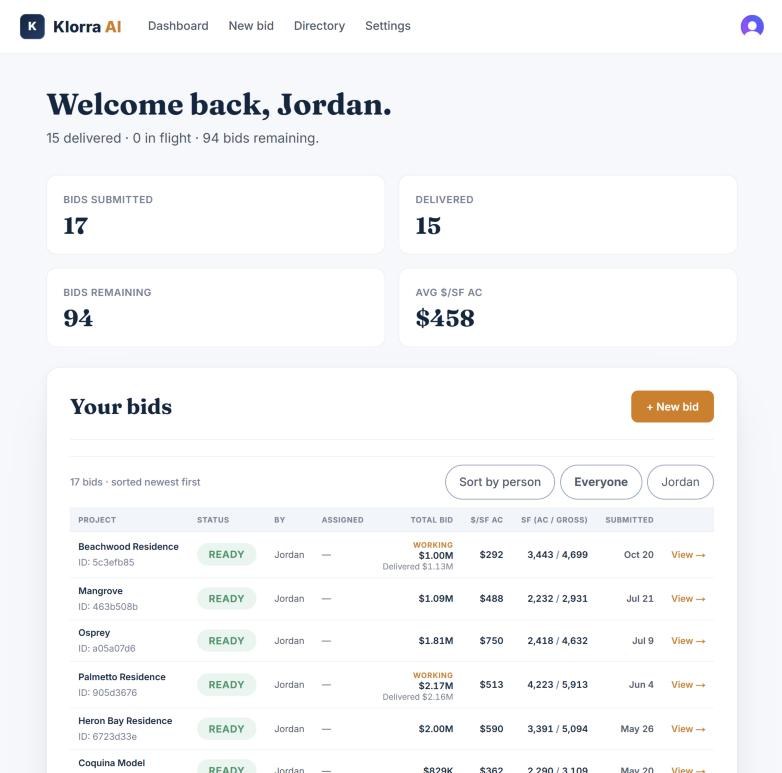
The top row is your account at a glance:
- Bids submitted and Delivered
- Bids remaining on your plan
- Avg $/SF AC across your delivered bids
Below it, Your bids lists every job, newest first, with its status, total, $/SF and square footage. Click View → to open a bid, or + New bid to start one.
A few things worth knowing:
- Status reads Queued, Processing, Ready, Failed or In review.
- Total bid · Working means you've made changes in review that you haven't locked yet. The delivered total shows underneath.
- On a team account you also get By and Assigned columns, filters by person, and a Recent activity feed. See Team access.
The top menu
- Dashboard: your bids.
- New bid: upload a plan set.
- Directory: your subs and suppliers.
- Settings: profile, team, branding, bidding address, defaults and billing.
The Feedback button on every page goes straight to us. Use it for anything: a number that looks off, a feature you want, a question.
Next: Start a bid.
Klorra deliverables are budgeting and planning tools, not warranted bids. Every quantity and rate is the builder's responsibility to verify before commercial use. Terms §3.