Buyout: Trade Packages and Sub Bids
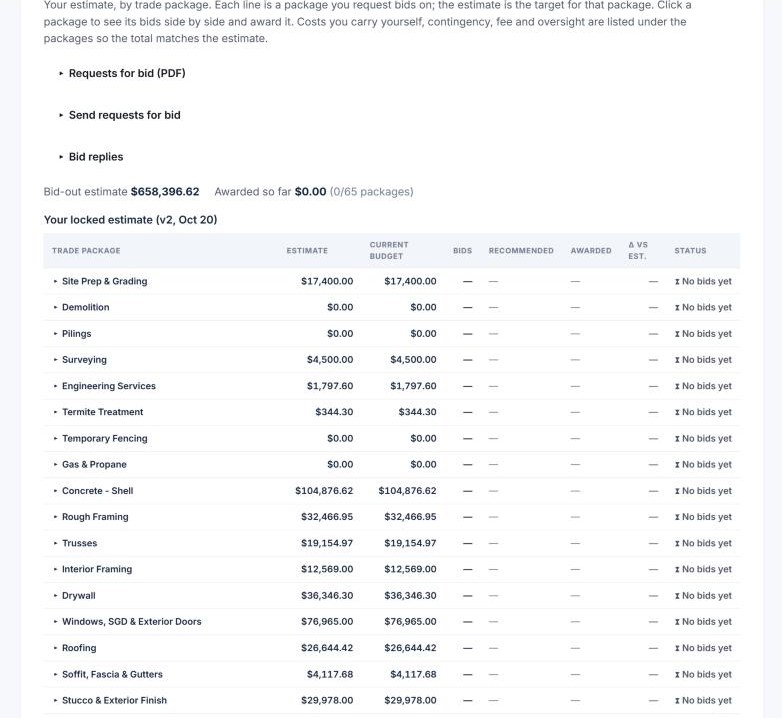
The Buyout tab turns your locked estimate into trade packages: one line for each package you'll get bids on, with your estimate as the target.
The roll-up
Each package shows:
- Estimate and Current budget
- Bids received and the Recommended bid
- Awarded amount and Δ vs est. (the variance)
- Status: No bids yet, Leveling, Awarded, or over budget
Below the packages are the costs you carry yourself (permits, fees, insurance, design), then contingency, fee and oversight, so the total always matches your estimate. ↓ Download Excel exports the whole comparison.
Buyout reads your latest locked estimate. If you haven't locked one yet, it asks you to lock in Review & Lock first.
Level bids for a package
Click any package to open its leveling grid. + Add bid to enter a sub's number:
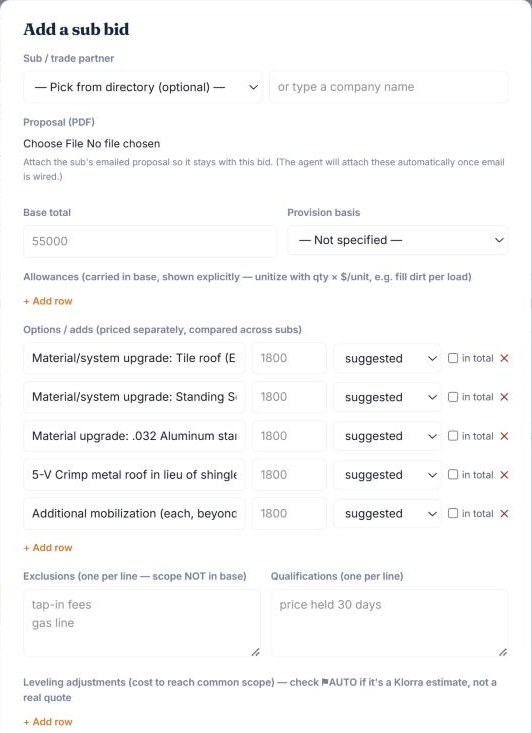
- Pick the sub from your directory, or type a company name.
- Attach their proposal PDF (up to 50 MB).
- Enter the base total and whether it's turnkey, labor only or material only.
- Break out allowances, options and adds, exclusions and qualifications.
- Add leveling adjustments to bring every bid to the same scope.
The grid lines up every bid on the adjusted total, not the raw base, and marks the best value. You always decide. Award, un-award or remove a bid at any time.
Bids that come back by email through requests for bid land here automatically. See Requests for bid.
Next: Requests for bid.
Klorra deliverables are budgeting and planning tools, not warranted bids. Every quantity and rate is the builder's responsibility to verify before commercial use. Terms §3.